 Forge
Forge Convert a PDF to Word, then check what changed
A DOCX extension does not guarantee a faithful, editable document. Use this workflow to choose the right conversion path and inspect the parts most likely to change.
Start with a selection test
Open the PDF and select a complete sentence. If you can copy sensible words into a text editor, standard PDF-to-Word conversion has text to work with. If you can only select the page as a picture, it is probably a scan. A PDF can mix digital text and scanned pages, so check more than one page.
If you still have the original Word document, edit that instead. PDF conversion reconstructs structure from positioned text; it cannot recover the author's exact styles, tracked changes or editing history.
Convert a digital document
- Open PDF to Word and choose the PDF.
- If it requires an opening password, use Unlock PDF with the correct password first.
- Use standard conversion for selectable text. Download the DOCX after processing completes.
- Open the DOCX in your editor and change a word and a table cell to confirm editability.
The practice files below let you do this without uploading a private document. They are deliberately simple; their results should not be treated as a benchmark for contracts, complex reports or handwritten scans.
If the document is a scan
Recognition must happen before image text can become editable. The AI Layout Recovery option depends on the OCR engine and models available on the server. If it is disabled or unavailable, standard conversion will not magically recognize the page image. An image retained inside a DOCX is not editable text.
For search rather than editing, OCR PDF may be the better output: it retains the page image and adds recognized text behind it. Neither path guarantees correct spelling, numbers or reading order.
A five-minute comparison before sharing
- Tables: compare quantities, decimal points and which header each cell belongs to.
- Reading order: read across a page with columns or a sidebar.
- Page breaks: check the final line of each page and the next heading.
- Characters: inspect accents, currency symbols and mathematical notation.
- Headers and footers: look for repeated text that became part of a paragraph.
Fix the DOCX, then export a fresh PDF from your editor if you need a stable final layout. Retain the original alongside the corrected version until the recipient has accepted it.
TRY IT WITH A PRACTICE FILE
A reproducible example
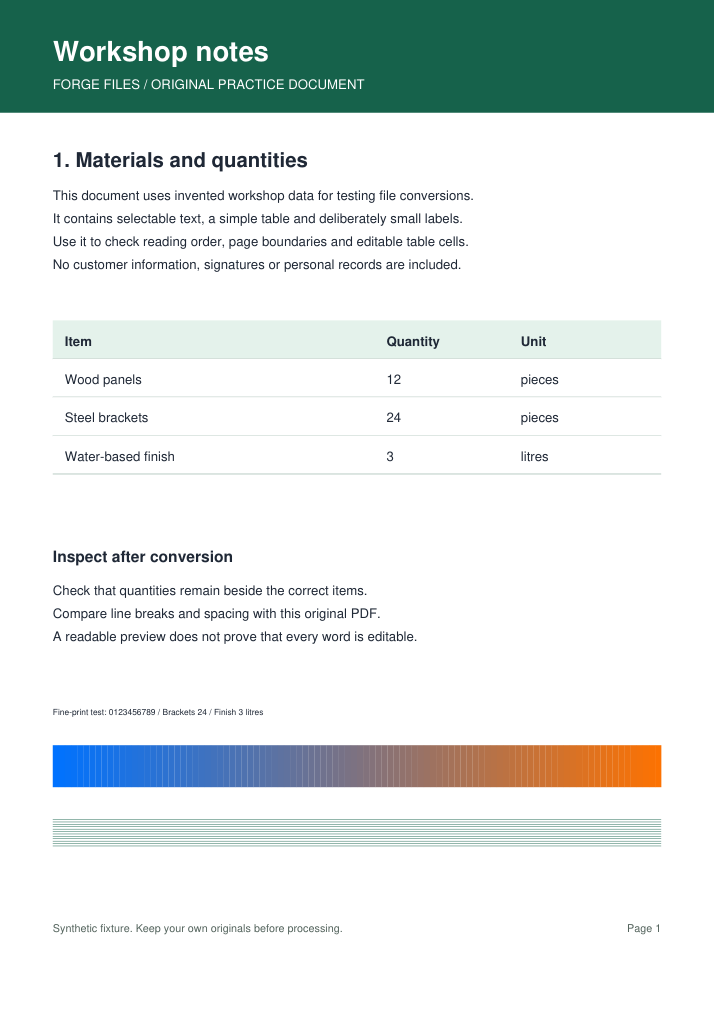
A three-page workshop report with selectable text, headings, a materials table and fine print. The DOCX below was produced by the standard converter. Inspect table cells, page breaks and line wrapping; this simple fixture does not demonstrate accuracy on scans or complex layouts.
Original PDF (9,531 bytes)
Actual converted Word document (38,637 bytes)
How this example was made
Original synthetic fixtures generated by Forge Files. No customer files or stock images. Local Python utilities from this repository; standard PDF-to-Word mode, HEIC JPEG quality 95. Browser processing and production runtime may differ.
Generated and checked on . Exact sizes, hashes and software versions · Reproduction script.
Frequently asked questions
Why did the layout move?
A PDF describes page positions rather than Word paragraphs and styles. Reconstruction, missing fonts and different page settings can change wrapping and breaks.
Do I need Word if I only want the words?
No. PDF to Text produces a TXT file. It does not preserve images or editable table structure.